7. Review the results
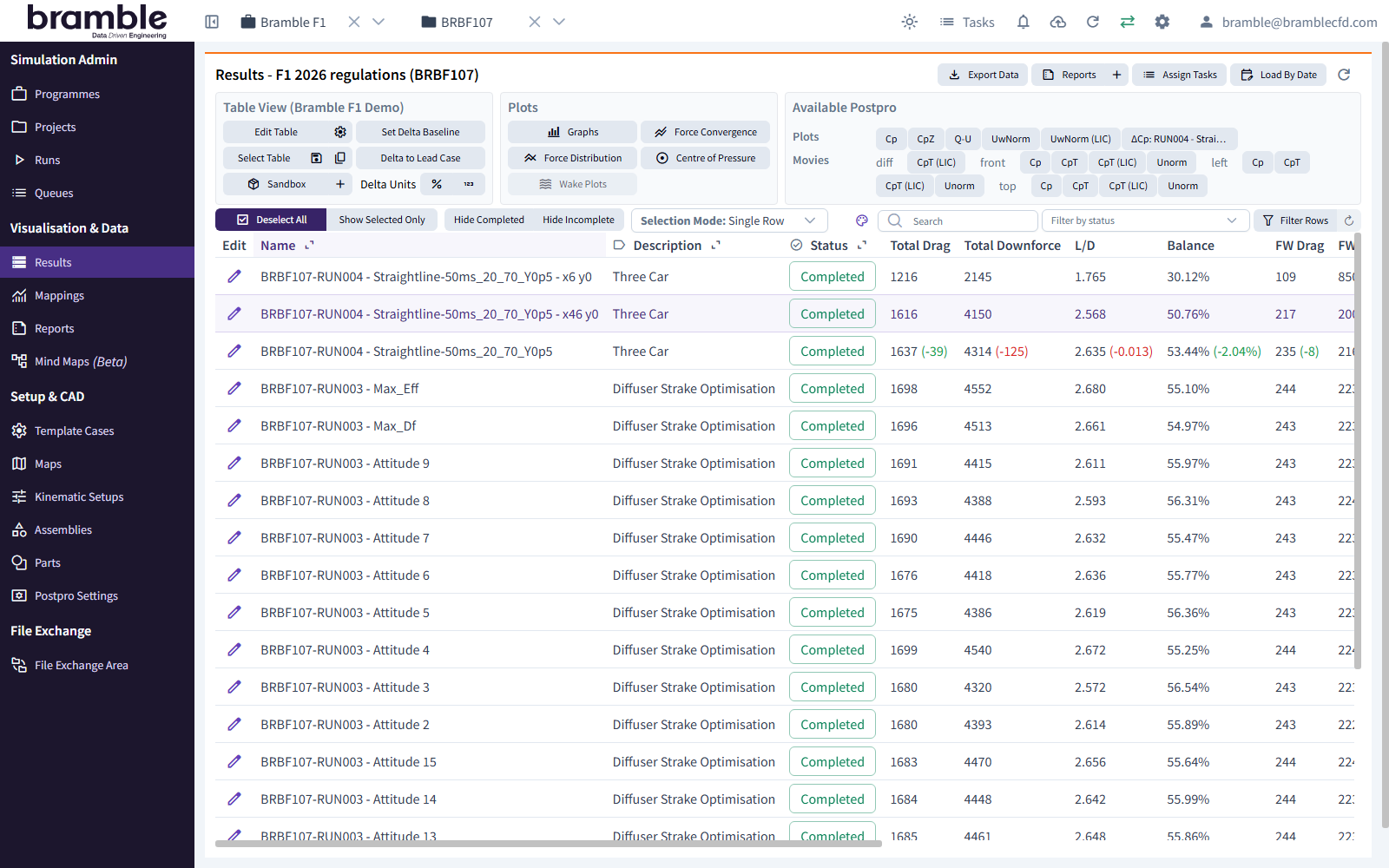
Your simulation has finished. Bramble has calculated forces and coefficients for every zone, and generated surface plots and flow-field movies. Now you'll look at them, then sign off the Attitude.
See the forces
- Check that the header still shows DEMO and DEMO01.
- In the sidebar, under Visualisation & Data, click Results.
The Results table lists every Run and Attitude in the Project. Find First front wing run and read across the
v50 row to see the calculated forces and coefficients. The fw zone's forces come from the force group the
Template Case defined for zones matching fw.*.
Tip
Table views control which columns appear and how they're formatted. You can add columns, rename them, round values and add your own calculations. Try switching views to see different sets of results.
Look at the postpro
- Select the v50 row in the Results table.
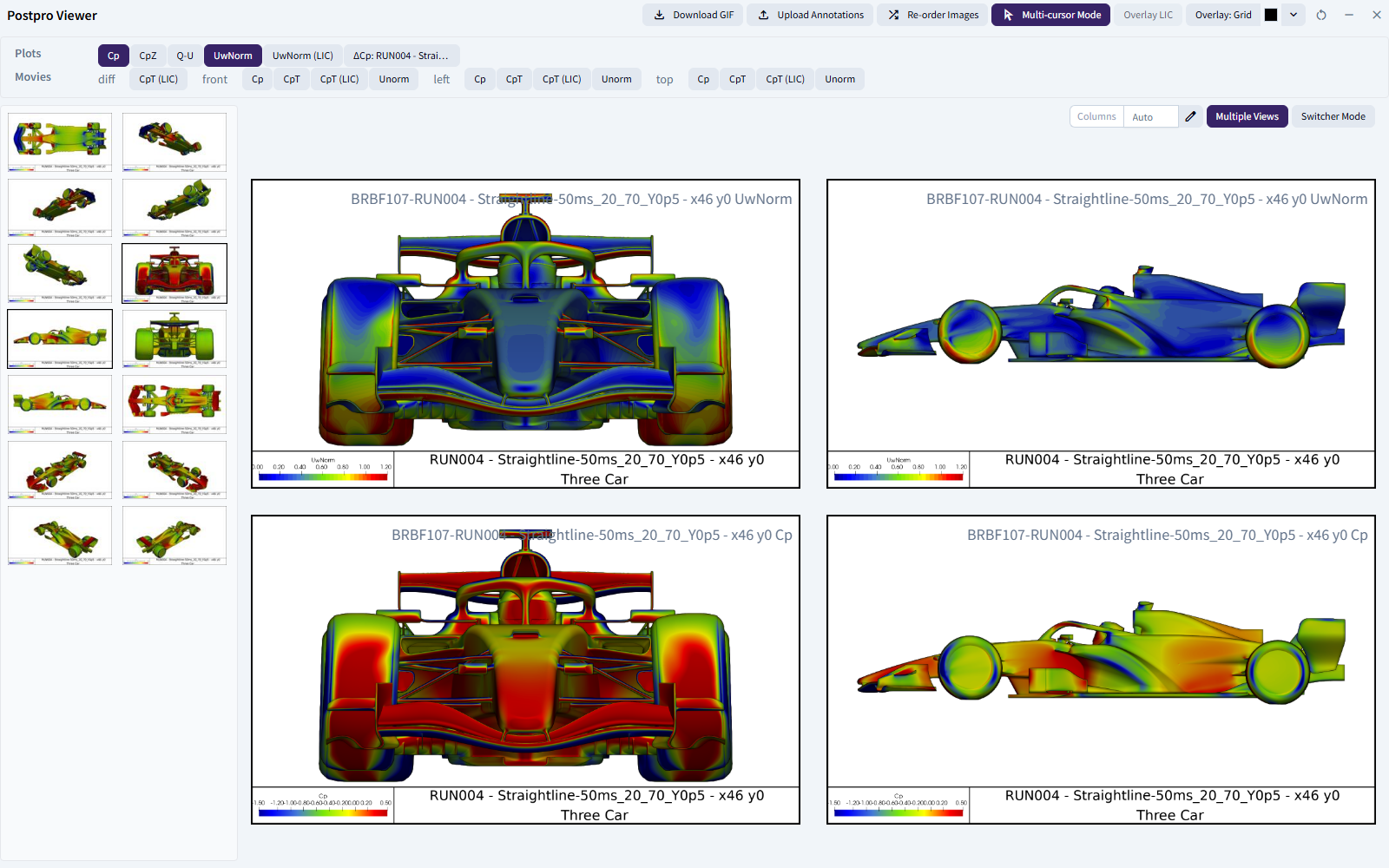
- In the Available Postpro panel, click a variable under Plots, for example a pressure-coefficient plot.
The Postpro Viewer opens with that variable's images for the selected Attitude. Try:
- selecting more variables or views to see them side by side
- the Movies group, for slices moving through the flow field
- the minimise button to return to the table. Re-Open Postpro Viewer brings the viewer back.
Sign off the Attitude
Signing off records that someone has reviewed the results and is happy with them.
- Go back to the Run (Runs → First front wing run) and open the Summary tab.
- In the lifecycle table, click Sign-off Case for v50 to open Sign-Off Confirmation. Confirm that the convergence is acceptable, the forces and flow metrics are sensible, and the post-processing images and movies are correct.
- Click Confirm.
You've finished the tutorial
You've set up, run and reviewed a complete Bramble simulation:
- a Programme and Project to organise the work
- a Part with a named zone, inside an Assembly
- a Template Case, a Map and a Kinematic Setup
- a Run with one Attitude, launched, solved, post-processed and signed off
Where next?
- Run more conditions. Add rows to a Map, for example velocities of 30, 40 and 50 m/s, and create a new Run. See create a Map.
- Compare designs. Upload a modified wing and create a Run with First front wing run as its Baseline. Bramble then generates deltas automatically. See create a Run.
- Understand the pieces. Read how Bramble works.
- Look things up. Lifecycle stages, file formats and limits are in the reference.