Create a Template Case
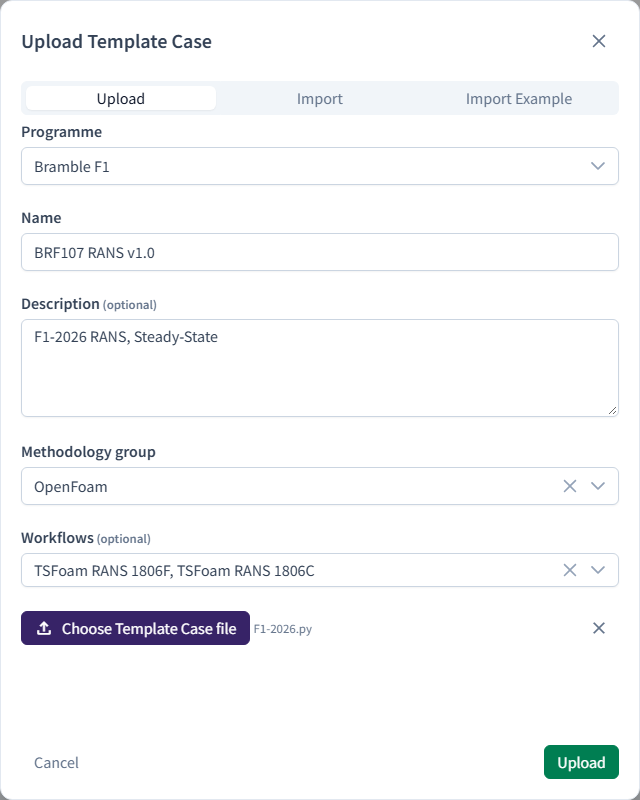
A Template Case is a recipe for a CFD case. A Programme needs at least one before you can create Runs in it. There are three ways to get one:
- Upload a Template Case file (
.py). - Import Template Cases from another Programme.
- Copy an existing Template Case.
All three start on the Template Cases page (sidebar → Setup & CAD → Template Cases).
Upload a Template Case file
- Click New Template Case, and leave the dialog on Upload.
-
Fill in Upload Template Case:
Field Required Notes Programme Yes The Programme whose Runs can use it. Defaults to the current Programme Name Yes Up to 100 characters. Must be unique in the Programme Description No Up to 255 characters Methodology group Yes The solver family: OpenFoam,OpenFoam with CHT,Star-CCM+orAcoustic. It sets which settings the editor offersWorkflows No Adds workflow-specific settings to the editor (for example MeanCalc) and limits Solution Stage to steady or transient to match. One Template Case can still serve several workflows -
Click Choose Template Case file and select the
.pyfile. - Click Upload.
If the file has a problem, the error message says why, for example "SyntaxError found on line 12: …". See the Template Case file reference.
Import from another Programme
Use this to reuse Template Cases that already exist elsewhere in your Account.
- Select the Programme to import into in the header.
- Click New Template Case and choose Import.
- In Import Template Case:
- Account: only shown if you belong to more than one Account.
- Programme: the Programme to import from.
- Template Case: tick one or more.
- Click Import.
Each import is an independent copy named <name> (Imported), with a number added if that name is taken. Changing it
doesn't affect the original.
Import Example
Some Users also see Import Example, which imports ready-made example Template Cases by group. It works like Import.
Copy a Template Case
Copying is how you change a Template Case that's locked because a Run has used it.
- In the Template Cases table, click the copy icon ("Create a copy of this template case"). You can also copy from a Run's CFD Setup tab with Create Copy, which assigns the copy to that Attitude.
- In Copy Template Case, change the Name (it defaults to
<name>(Copy 1)), and optionally the Programme, description, Methodology group and workflows. - Click Create Copy.
The copy starts unlocked.
Manage Template Cases
| To… | Do this |
|---|---|
| Edit the settings | Click the row to open the Template Case editor |
| Change the name, description, group or workflows | In the editor, click Edit. The group and workflows can't change once the Template Case is locked |
Download the .py |
In the editor, Edit File (or View File) → Download Saved |
| Hide it without deleting it | Turn off Active. Show inactive shows it again |
| Delete it | Click the delete icon. Locked Template Cases can't be deleted |
| Compare two | Click Compare Template Cases, then select two rows |
Related: Edit a Template Case · Template Case file · Simulation configuration