Create a Run
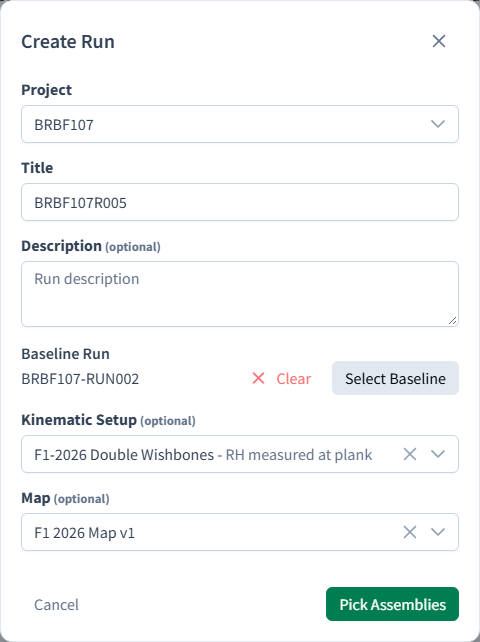
A Run combines Assemblies with an optional Map and Kinematic Setup. Each Attitude in the Run then needs its own CFD setup before it can be launched.
Before you start
- Select a Programme and a Project in the header. The Run is created in that Project.
- The Programme needs at least one Template Case. Until it has one, New Run is disabled.
Create the Run
- In the sidebar, under Simulation Admin, click Runs.
- Click New Run.
-
Fill in Create Run:
Field Required Notes Project Yes Defaults to the selected Project Title Yes Up to 100 characters Description No Baseline Run No Click Select Baseline to choose a Run to compare against. Bramble then generates delta values and delta postpro Kinematic Setup No Default parameters and coordinate systems Map No One Attitude per row. Without a Map, the Run has a single Attitude named after the Run -
Click Pick Assemblies. In Select Assemblies, filter by Programme and Assembly Folder, and move the Assemblies you want from Available Assemblies to Selected Assemblies.
- Click Create Run.
Warning
Bramble lets you create a Run with no Assemblies, but it can't be launched ("This Run has no parts attached").
Set up each Attitude's CFD
- Open the Run and go to the CFD Setup tab.
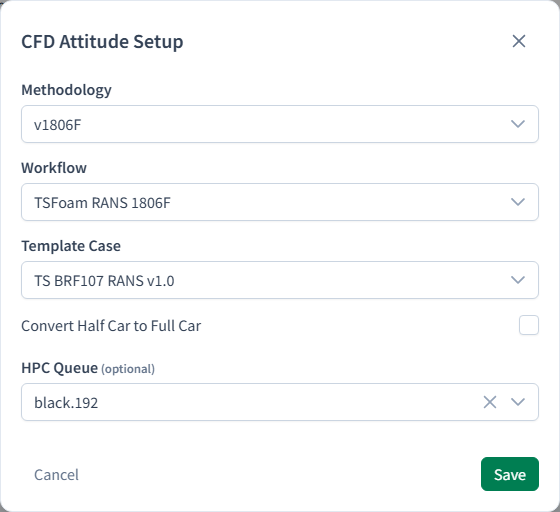
- Click the pencil icon at the top of an Attitude's column.
- In CFD Attitude Setup, choose:
- Methodology: the solver and version, e.g.
v1806F. - Workflow: the solve type, e.g.
TSFoam RANS 1806ForTSFoam DES 1806F. - Template Case: any Template Case in the Programme. Pick one that suits the methodology.
- Optional settings, depending on the methodology and workflow, such as the HPC Queue when more than one is available, half-car to full-car conversion, or underfloor geometry.
- Methodology: the solver and version, e.g.
- Click Save, or choose Save to All from the Save menu to apply the same setup to every Attitude.
Optionally, use the Run Checks tab to choose each Attitude's pre-checks, and the PostPro Setup tab to choose the images and movies to generate.
Next: Launch and monitor a Run
Related: Project organisation