App navigation
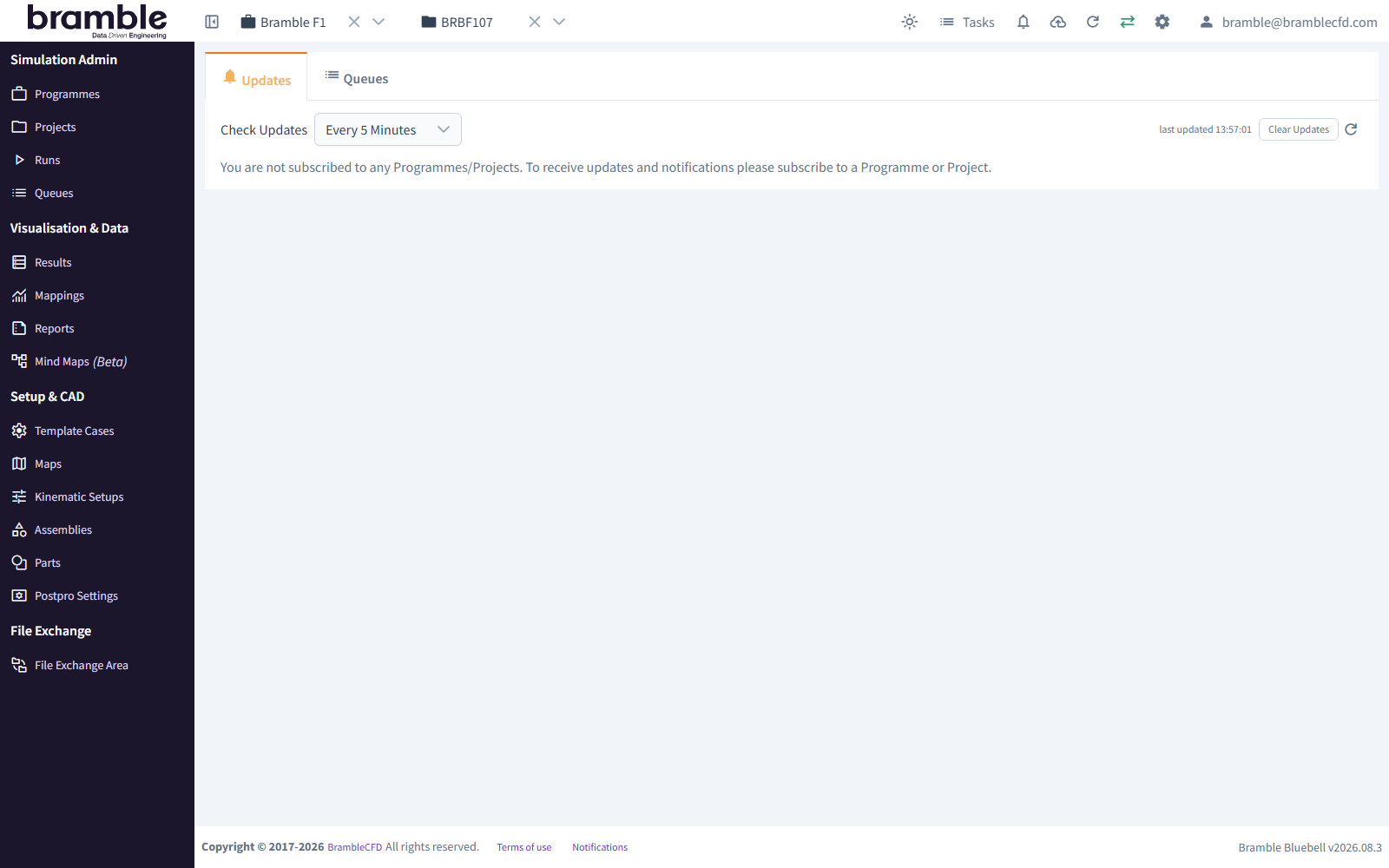
The Bramble app has four areas: the sidebar on the left, the header along the top, the footer along the bottom, and the main content area between them.
Sidebar
The sidebar lists every page, in four groups.
Simulation Admin
| Page | Path | Use it to |
|---|---|---|
| Programmes | /programmes |
Create, edit and select Programmes |
| Projects | /projects |
Create and select Projects in the selected Programme |
| Runs | /runs |
Create Runs and open them to configure, launch and monitor Attitudes |
| Queues | /queues |
See jobs queued for, or running on, the HPC queues |
See project organisation.
Visualisation & Data
| Page | Path | Use it to |
|---|---|---|
| Results | /results |
See forces and coefficients, configure table views, and open the postpro viewer |
| Mappings | /mappings |
Build surrogate models (e.g. kriging) from the results of several Attitudes |
| Reports | /reports |
Create and review custom reports |
| Mind Maps | /mind-maps |
(Beta) Lay out a Project's Runs as a mind map, with results for each |
See results and post-processing.
Setup & CAD
| Page | Path | Use it to |
|---|---|---|
| Template Cases | /template-cases |
Upload and edit Template Cases |
| Maps | /maps |
Define the Attitudes (test conditions) for Runs |
| Kinematic Setups | /kinematics |
Define default parameters, coordinate systems and moving Parts |
| Assemblies | /assemblies |
Group Parts into Assemblies and view them in 3D |
| Parts | /parts |
Upload geometry, and transform or deform Parts |
| Postpro Settings | /postpro-settings |
Configure the images and movies generated by post-processing |
See geometry and simulation configuration.
File Exchange
| Page | Path | Use it to |
|---|---|---|
| File Exchange Area | /file-exchange |
Exchange files securely with the Bramble team |
Not seeing a page?
- Restricted Users don't see Queues or the Setup & CAD group.
- File Exchange is hidden by default. To show it, untick Hide the File Exchange Area in your user settings. See use the File Exchange Area.
- Template Cases, Maps and Kinematic Setups, and the Run CFD Setup and PostPro Setup tabs, are hidden if the user setting to hide CFD setup is on.
Header
From left to right:
Sidebar toggle. Collapses the sidebar to give pages more room, or expands it again.
Programme and Project selectors. Two dropdowns showing the selected Programme and Project. Most pages show data for the current selection only. Switch here without leaving the page you're on. Pages such as Projects, Runs and Results need a Programme (and Project) selected first.
Theme. Switch between Auto, Light and Dark.
Top Up Account. Only for Accounts that pay by card. Opens the payment page.
Tasks. Tasks assigned to you by other Users in your Account.
Notifications (bell). Two tabs: - Latest Updates: status updates from the Runs you're subscribed to. - Tasks: your tasks.
Uploads (cloud). The progress of recent geometry uploads. Uploads carry on in the background while you use other pages.
Refresh. Reloads the data shown on the page.
Connection status. Shows whether the app has a live connection to Bramble for real-time updates.
Settings (cog). User settings, and Account settings and User Management for Account admins. See users and accounts.
User menu (your name). Choose these from it: - Account: switch Account, if you belong to more than one - the billing pages that apply to your Account: Credits, Payments, Core Hours Usage or Meancalc Usage - Logout
Home page
The home page (/, or click the Bramble logo) has two tabs:
- Updates: the latest status updates from the Programmes and Projects you're subscribed to. Check Updates sets how often the list refreshes, and Clear Updates empties it. If you aren't subscribed to anything, the tab says so.
- Queues: a summary of the HPC queues, like the Queues page.
Footer
- Terms of use: opens the terms you agreed to when you started using Bramble.
- Notifications: reopens Bramble's site notices, such as maintenance announcements.
- Version (bottom right), e.g.
Bramble Bluebell v2026.08.3: the version of the app you're using. Include it when you report a problem to support@bramblecfd.com.