6. Launch the simulation
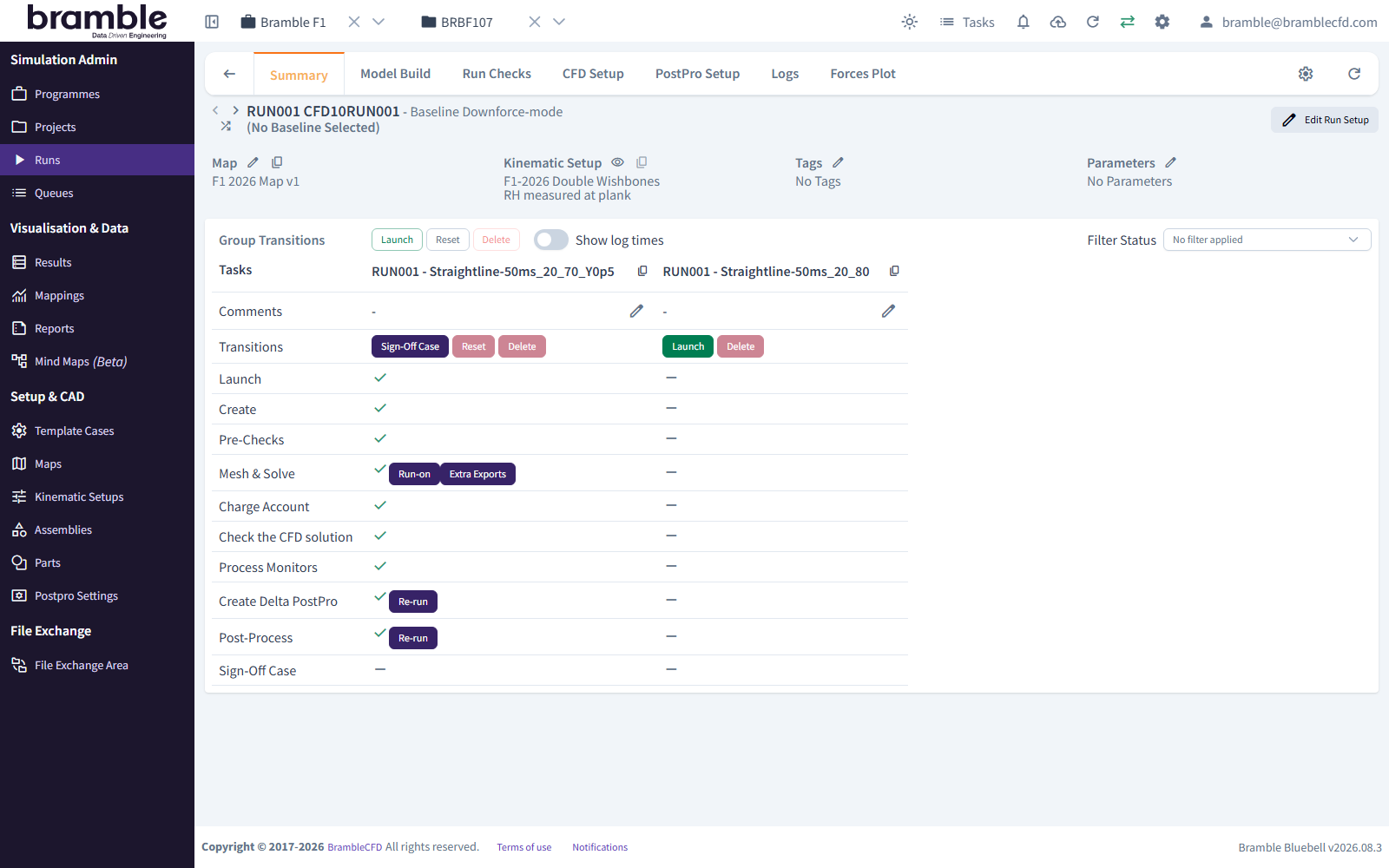
Launching happens in two steps, with a check in between:
- Launch builds the CFD case and runs automated pre-checks. It's quick and doesn't use HPC time.
- Mesh & Solve sends the case to the HPC queue. You start this yourself once you're happy with the pre-checks.
Launch and run the pre-checks
- Open the Run's Summary tab.
- Under Group Transitions, click Launch.
- In Group Launch, tick the v50 Attitude and click Trigger launch.
The lifecycle table shows the Attitude in a column and the lifecycle stages as rows. Watch Create and then Pre-Checks move from pending, to running, to completed. Hover over any icon to see its status.
If a pre-check fails
Open the Run's Run Checks tab to see which check failed and why. The Logs tab has the detail. For this
tutorial, the most likely cause is the zone name. Check that the Part's zone is fw.
Check, then mesh and solve
When Pre-Checks has completed:
- On the Run details page, open the Run Checks tab. Review the pre-check results and the geometry plots for v50.
- Back on the Summary tab, click Mesh & Solve for the v50 Attitude.
-
Bramble asks you to confirm that you've checked:
- the geometry plots
- that there are no pre-check errors
- that the CFD Setup is correct
Click Confirm.
Follow its progress
The Mesh & Solve stage shows Queued while it waits for HPC resources, then Running on cluster. How long it takes depends on the queue and the case size.
You don't need to keep the page open. You can follow progress in several places:
- The Run's Summary tab: each lifecycle stage and its status.
- Queues in the sidebar: your job in the HPC queue.
- The bell icon in the header: Latest Updates for your Runs.
- Email: if lifecycle emails are turned on in your user settings.
After Mesh & Solve, Bramble runs the rest of the lifecycle automatically. It checks the solution, processes the force monitors and post-processes the case.
Checkpoint
Every stage up to Post-Process shows completed. The last stage, Sign-off Case, is waiting for you. You'll do that after looking at the results.
For what every stage and status means, see statuses and lifecycle.