Compare results in the postpro viewer
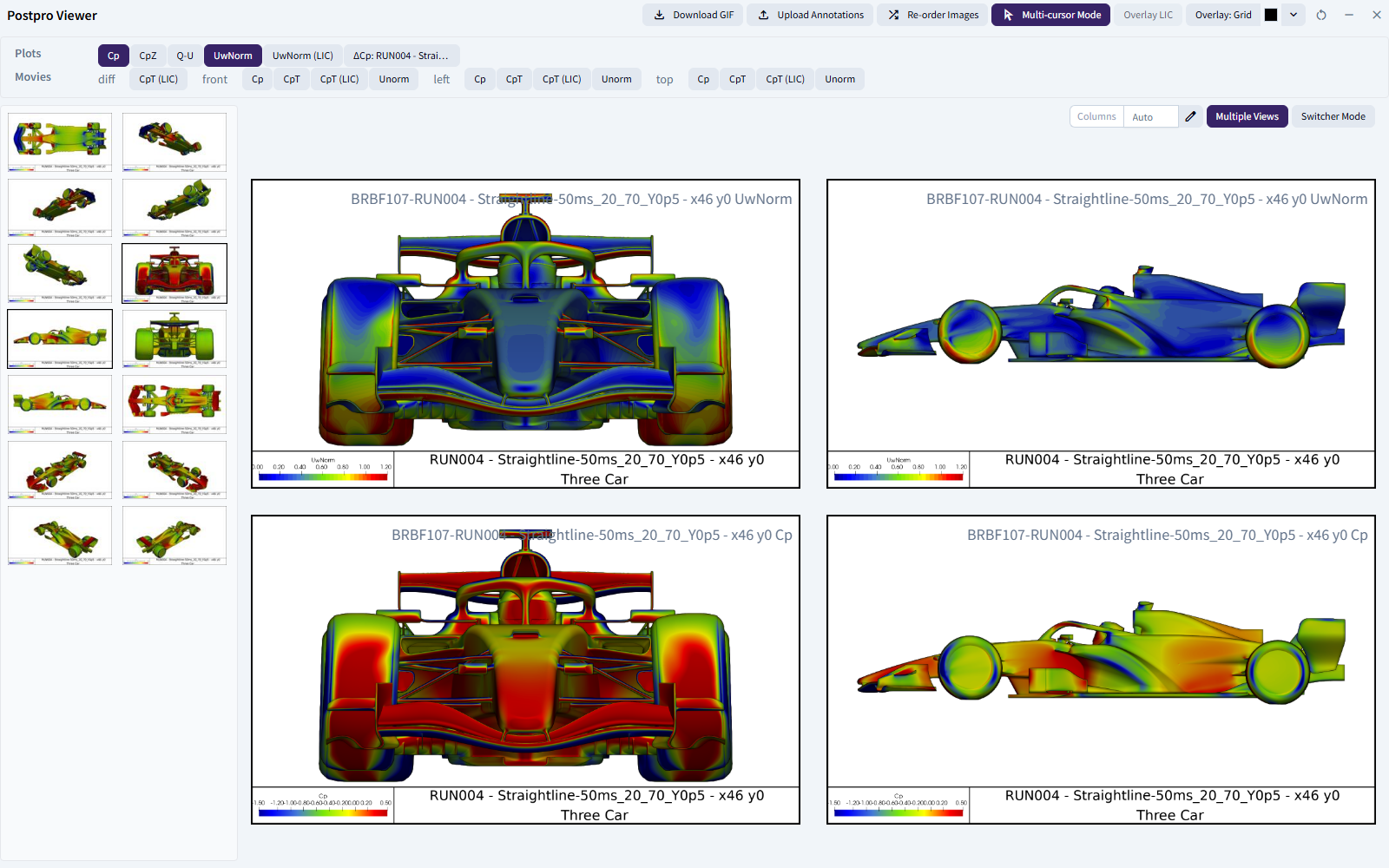
The postpro viewer shows the plots, movies and check images of one or more Attitudes side by side, with their zoom, pan and playback kept in step. For every control and shortcut, see the postpro viewer reference.
Open the viewer
- On the Results page, select the Attitudes to compare in the Results table.
- The Available Postpro panel lists what exists for them, grouped as Checks, Plots, Movies, Annotations and Image Deltas.
- Click a variable, for example Cp under Plots. The Postpro Viewer opens with one image per selected Attitude.
You can select several variables of the same kind, for example several Plots, and they're all shown. Choosing a different kind, such as a Movie, replaces the selection. The Available Postpro strip is also at the top of the viewer, so you can change variables without leaving it.
To leave the viewer: - Minimise keeps your selection. Use Re-Open Postpro Viewer on the Results page to come back. - Close clears the selection.
Choose views
For Checks, Plots and Image Deltas, the camera views are listed as thumbnails on the left. Click one to show that view.
- To compare several views at once, turn on Multiple Views, then click each thumbnail you want. Click a thumbnail again to remove it.
- With Multiple Views off, ← and → step through the views.
For Movies, choose the camera in the Movies row of Available Postpro.
Arrange the grid
- Columns is Auto by default. Click the pencil to set a fixed number of columns (1–12), and the red cross to go back to Auto. Your choice is remembered.
- Re-order Images opens a list you can drag, or use the buttons, to change the order of the images. Then click Confirm. The order applies to the current view.
Zoom and compare
- Scroll to zoom at the cursor, drag to pan, and use the reset button in the header to go back. Every image zooms and pans together.
- Multi-cursor Mode, on by default, shows a crosshair at the same position on every image.
- Switcher Mode shows one image at a time at full size, so you can flick between Attitudes and spot differences. Press - and = for previous and next, or 1–9 to jump to an image. It needs at least two images.
Play movies
For Movies, use Play / Pause, Restart, Step Previous and Step Next, the Frame box or the slider. All movies play in sync. Alt + scroll steps frame by frame, and the arrow keys control playback. See keyboard shortcuts.
Overlay images
| Overlay | Use it to | How |
|---|---|---|
| Overlay Grid | Line up features across images | Pick a grid from the dropdown, then toggle Overlay Grid. The colour swatch sets the line colour |
| Overlay LIC | Add surface-flow (LIC) texture to Plots or Movies | Toggle Overlay LIC. Needs LIC postpro for the selected Attitudes |
| Overlay Plot | Show a surface plot under a movie | Movies only. In Select Overlay Plot, choose a variable and camera, and optionally an Overlay Clipping side for a split view |
With an overlay on, set its Opacity (0.1–1.0) with the − and + buttons, or the , and . keys.
Create your own grid. In the grid dropdown, click Create New Grid. Enter a Name, the number of rows (Horizontal Cells, default 16) and columns (Vertical Cells, default 30), then click Create. Grids are shared with everyone in your Account. The line colour is personal to you.
Save what you see
- Right-click an image → Save Image or Copy Image. You get the image as it's currently displayed, including zoom and grid.
- Download GIF makes a looping GIF with one frame per image in the grid, in grid order, at one second per frame. For Movies, each frame is the current frame of each movie. Zoom isn't applied.
Related: Generate image deltas · Annotate an image · Results and post-processing