1. Organise your work
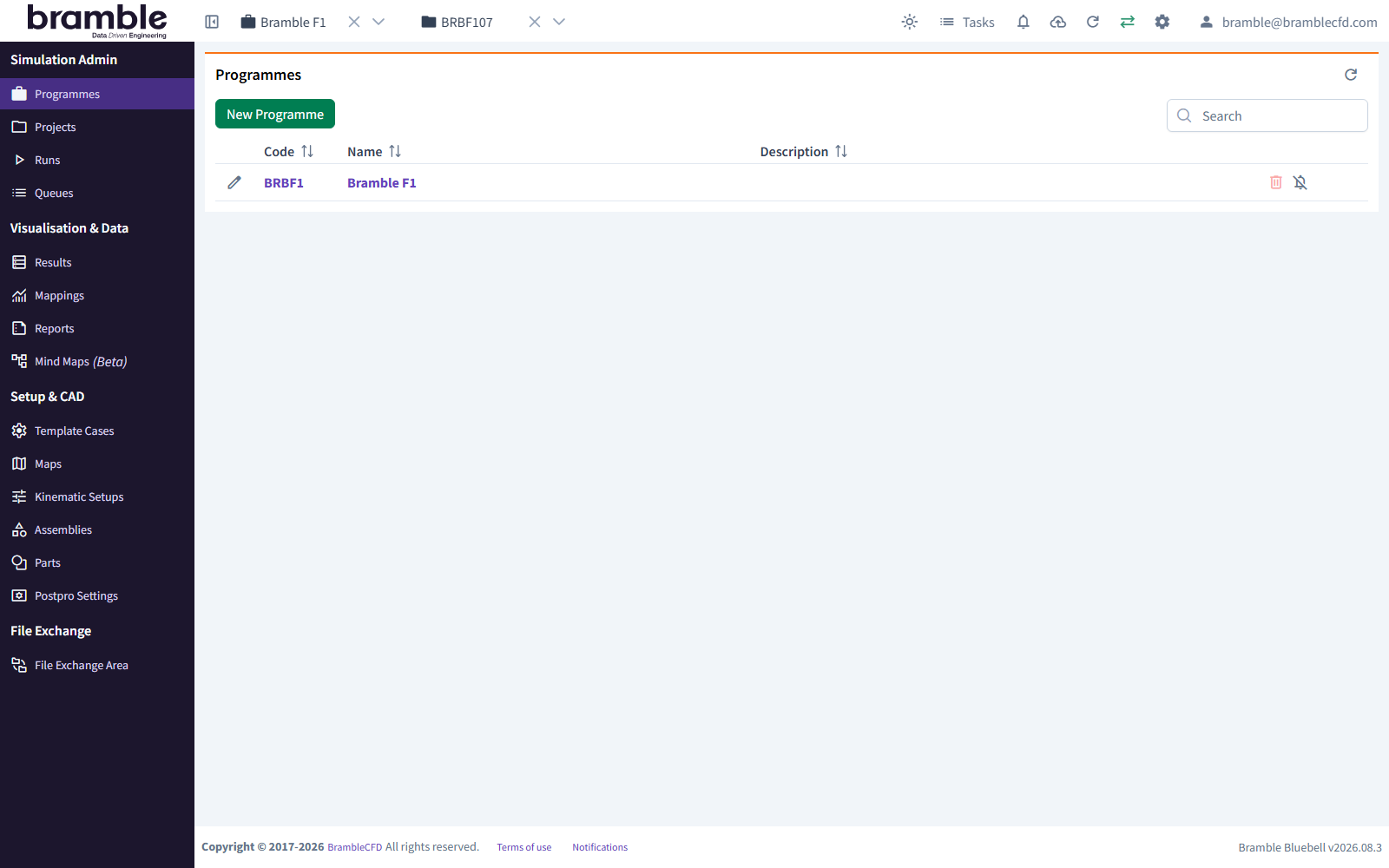
Everything in Bramble lives inside a Programme, and Runs are grouped into Projects within it. You'll create one of each to hold this tutorial.
Create a Programme
- In the sidebar, under Simulation Admin, click Programmes.
- Click New Programme.
- Fill in the Create New Programme form:
- Code:
DEMO. The code identifies the Programme and is used to name its Projects. - Name:
Demo Programme - Description:
Bramble tutorial
- Code:
- Click Create Programme.
DEMO now appears in the Programmes table.
Code or name already taken?
Programme codes and names must be unique within your Account. If someone has already worked through this
tutorial, use your initials instead, for example DEMOST.
Select the Programme
In the header, open the Select a Programme dropdown and choose DEMO.
Most pages show only the selected Programme's data, and you need a Programme selected before you can create a Project.
Create a Project
- In the sidebar, click Projects.
- Click New Project.
- In the Create New Project form, check that Programme is
DEMO, then fill in:- Title:
Front wing study - Description:
My first Bramble simulation
- Title:
- Click Confirm.
Bramble names the Project automatically from the Programme code and the next number. This one is DEMO01.
Select the Project
In the header, open the Select a Project dropdown and choose DEMO01.
Checkpoint
The header now shows DEMO and DEMO01. Everything you create next belongs to this Programme, and the Run will belong to this Project.
To learn more about how Programmes, Projects and Runs fit together, see project organisation.