Statuses and lifecycle
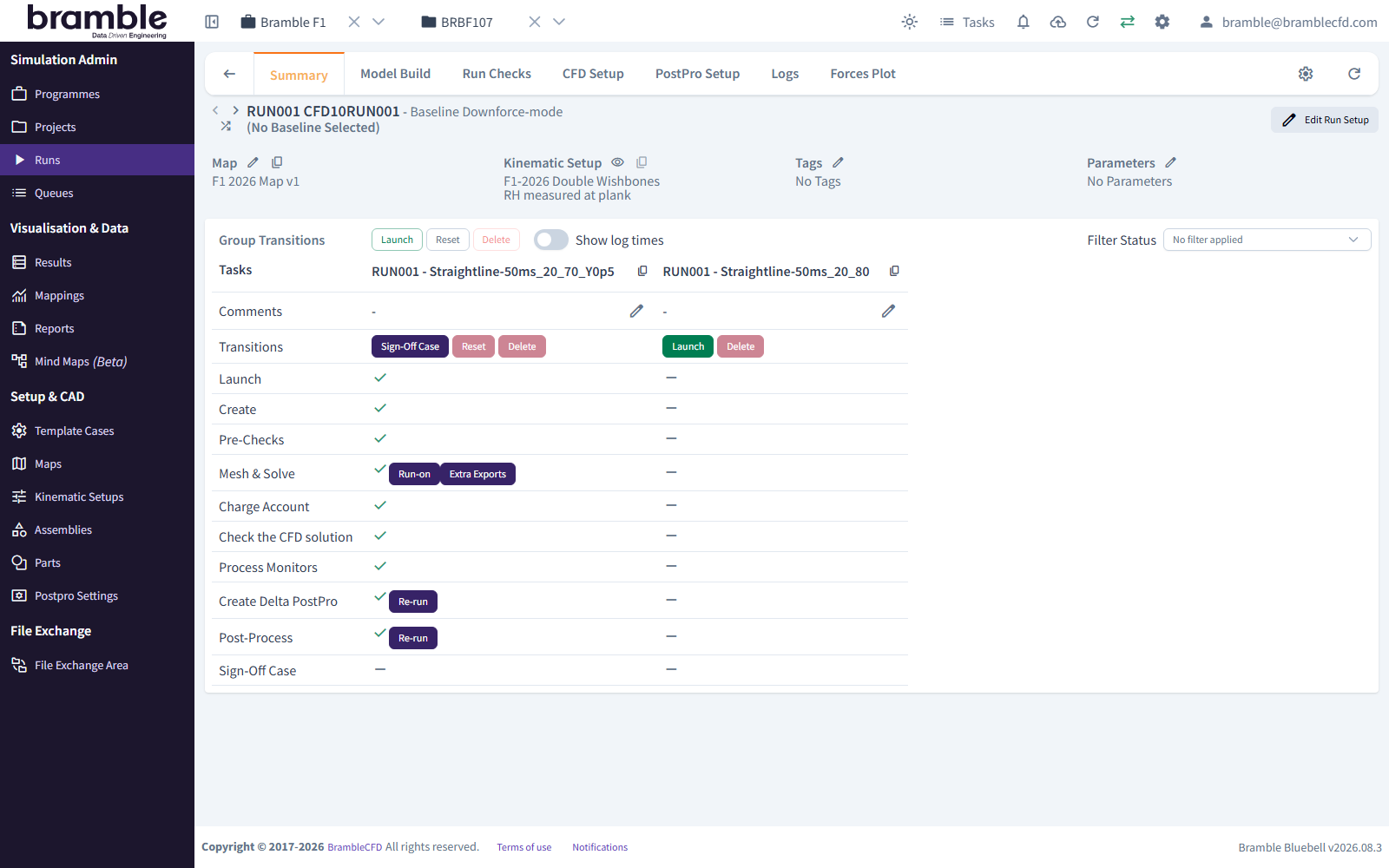
Every Attitude passes through a sequence of stages called its lifecycle. The run's Summary tab shows this as a table: each column is an Attitude, each row is a stage, and an icon shows the status of each stage. For why the lifecycle works this way, see case lifecycle.
Lifecycle stages
The stages run in this order. Some stages only appear when they apply to the Attitude. For example, delta post-processing needs a baseline.
| Stage | What happens |
|---|---|
| Launch | Checks the Account can pay, and reserves credits on Pay per Run Accounts. Then starts creating the case |
| Create | Creates the CFD case files from the Template Case, geometry and Map |
| Pre-Checks | Runs automated checks on the case before it is solved |
| Mesh & Solve | Queues the case on an HPC queue, then meshes and solves it |
| Charge Account | Runs straight after Mesh & Solve. Charges the Account: reserved credits are marked used, or the cost or core hours are deducted. A Reset after this doesn't refund the charge |
| Check the CFD solution | Runs automated checks on the solution |
| Process Monitors | Processes all force and mass-flow monitors |
| Post-Process | Runs automated post-processing: forces, plots and movies |
| Create Delta PostPro | Generates delta plots and movies against the baseline and any extra deltas |
| Sign-off Case | You confirm the results are acceptable. This marks the Attitude complete |
A cell with a dash and the tooltip "Action not in Attitude Lifecycle" means the Attitude's workflow doesn't have that stage.
Where the lifecycle waits
The lifecycle stops at these points, and the next stage appears as a button in the Attitude's Transitions row. While an Attitude is waiting after launch, Reset is also offered.
-
After Pre-Checks. Launch runs Create and Pre-Checks, then stops. Review the checks and geometry, then start Mesh & Solve yourself, either with the Mesh & Solve button for one Attitude or with the group Mesh & Solve button for several. This is the stage that uses compute. Mesh & Solve Attitude Confirmation asks you to check the geometry and delta geometry plots, that there are no pre-check errors, and that the CFD setup is correct.
If your Account has the feature, you can untick Hold After Checks on the Run Checks tab so that Mesh & Solve starts automatically when every pre-check passes. A failed pre-check always stops the Attitude. See configure pre-checks. - At Sign-off Case. After post-processing, review the convergence, forces and postpro, then click Sign-off Case. Sign-Off Confirmation asks you to check convergence, forces and flow metrics, and the images and movies. The cell then shows who signed off, as "(By: <username>)". Any User who isn't restricted can sign off.
An Attitude that uses a mapped-solution donor also waits before Mesh & Solve until the donor has solved ("Waiting for donor case to complete Mesh and Solve stage.").
Stage statuses
Hover over a stage's icon in the lifecycle table to see its status.
| Status | Meaning |
|---|---|
| Pending | Not started yet |
| Queued | Waiting for a worker or HPC resource |
| Running | In progress. The icon changes while files are uploading to or downloading from the cluster |
| Running on cluster | Running on the HPC cluster |
| Waiting | Create Delta PostPro only: "Waiting for Baseline to complete Mesh & Solve". It runs automatically when the baseline has solved, and shows a spinner, with no tooltip, while it runs |
| Completed | Finished successfully |
| Failed | Finished with an error. See the Logs tab |
| Skipped failed task | Failed, then skipped by a user so later stages could run |
| Aborted | Stopped by a user |
| Insufficient Credits | The Account doesn't have enough credit to run this stage |
| Unknown Status | Shown with a bug icon. Contact support@bramblecfd.com |
Attitude statuses
The overall status of an Attitude, shown in lists and notifications, is one of: pending, queued, running, completed, failed, aborted or insufficient credits.
The Results page describes each Attitude in its own words:
| Label on Results | Means |
|---|---|
| Draft | Waiting at Sign-off Case |
| User Required | Waiting for you at another stage, such as Mesh & Solve |
| "<stage>: <status>", e.g. "Mesh & Solve: Running" | A stage is queued, running or has failed |
| Completed | Signed off |
Actions
These actions are available from the lifecycle table, depending on the Attitude's state. Restricted Users don't see them.
Transitions row
| Action | Shown when | What it does |
|---|---|---|
| Launch | Not launched yet | Runs Launch, Create and Pre-Checks, then waits |
| Mesh & Solve | Waiting after Pre-Checks | Starts meshing and solving, after a confirmation |
| Sign-off Case | Waiting at Sign-off Case | Signs off the Attitude, after a confirmation |
| Abort | Queued or running | Stops the case. "You will not be able to continue the run without resetting it." Afterwards, only Reset is offered |
| Reset | Failed, aborted, or waiting after launch | Deletes the case's geometry, mesh, solution, exports and postpro, and returns the Attitude to Launch. The CFD setup, PostPro setup and checks template are kept. Returns reserved credits, unless the Attitude has already been charged. Not available on example Runs |
| Skip Failed Task | A stage has failed | Marks the failed stage as skipped so the lifecycle can continue. Asks for confirmation (Skip Failed Solve) only when Mesh & Solve failed |
| Insufficient Credits | Reset | The Account ran out of credit | Add credit, then press it. It resets the case straight away, with no confirmation |
| Archive Attitude | Signed off | Deletes the mesh, solution and raw exports, and keeps the results. Can't be undone in the app. See archive Attitudes |
| Delete | Not archived | Deletes the Attitude |
Buttons inside stage cells
| Action | Row | What it does |
|---|---|---|
| Rerun Prechecks | Pre-Checks | Runs Pre-Checks again, optionally with a different checks template and extra deltas. Needs the role that allows it, and only before Mesh & Solve starts |
| Run-on | Mesh & Solve | Continues the solve for longer, if the workflow supports it. Offered when the solution checks failed, or after post-processing and before sign-off |
| Extra Exports | Mesh & Solve | Exports more data, such as volume data, from the existing solution, if the workflow supports it. See export volume data |
| Re-run | Post-Process, Create Delta PostPro | Generates postpro again. Choose New only or Rerun all in Rerun Postpro. Only when the Attitude is waiting at Sign-off Case or signed off, and isn't archived. See re-run post-processing |
Run-on, Extra Exports and Re-run aren't offered once an Attitude is archived.
Group Transitions
When a Run has more than one Attitude, Group Transitions applies an action to several at once: Launch, Mesh & Solve, Abort, Reset and Delete. Pick the Attitudes in the dialog. Those that can't take the action are listed as invalid. There's no group Skip or group Re-run.
Summary tab options
- Filter Status shows only the stages with the statuses you pick.
- Show log times, if your role allows it, shows queue and run times in each cell.
Check statuses
Each pre-check and solution check row on the Run Checks tab shows one of:
| Status | Meaning |
|---|---|
| Pending | Not run yet |
| Passed | Every check in the row passed |
| Failed | At least one check failed. The stage stops until you act on it |
See the checks reference for every check.
Related: Case lifecycle · Handle a failed Attitude · Error messages