Launch and monitor a Run
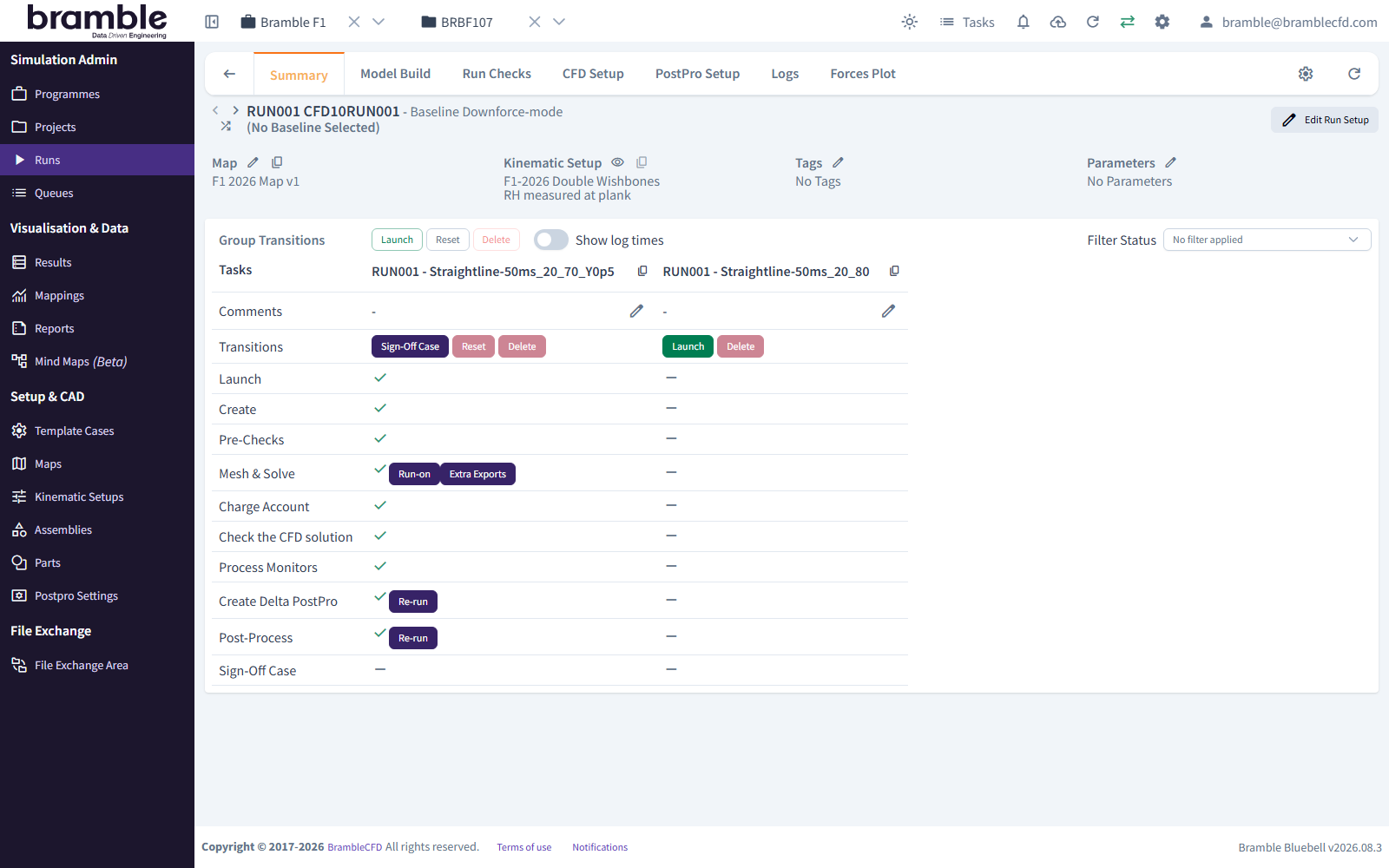
A Run's Attitudes go through three steps that need you: Launch, Mesh & Solve and sign-off. Bramble runs everything in between automatically.
Before you start
Every Attitude you want to launch needs a valid CFD setup. See create a Run.
1. Launch
- Open the Run and go to the Summary tab.
- Under Group Transitions, click Launch.
- In Group Launch, tick the Attitudes to launch and click Trigger launch. Attitudes with CFD setup problems are listed separately, as invalid, and can't be launched.
Launch creates the CFD case and runs the Pre-Checks, then stops.
2. Review, then Mesh & Solve
- When Pre-Checks has completed, open the Run's Run Checks tab and review the pre-check results and geometry plots.
- Start the solve:
- One Attitude: click its Mesh & Solve button, confirm you've checked the geometry plots, the pre-checks and the CFD setup, then click Confirm.
- Several Attitudes: under Group Transitions, click Mesh & Solve, choose the Attitudes, and click Trigger mesh and solve.
Mesh & Solve is the stage that uses HPC time, and the Account is charged for the simulation. If the Account doesn't have enough credit, the Attitude shows Insufficient Credits. Add credit, then use Insufficient Credits | Reset to try again.
3. Monitor
| Where | What you see |
|---|---|
| Run → Summary tab | Every lifecycle stage for every Attitude. Hover over an icon for its status |
| Run → Logs tab | Detailed logs, for when a stage fails |
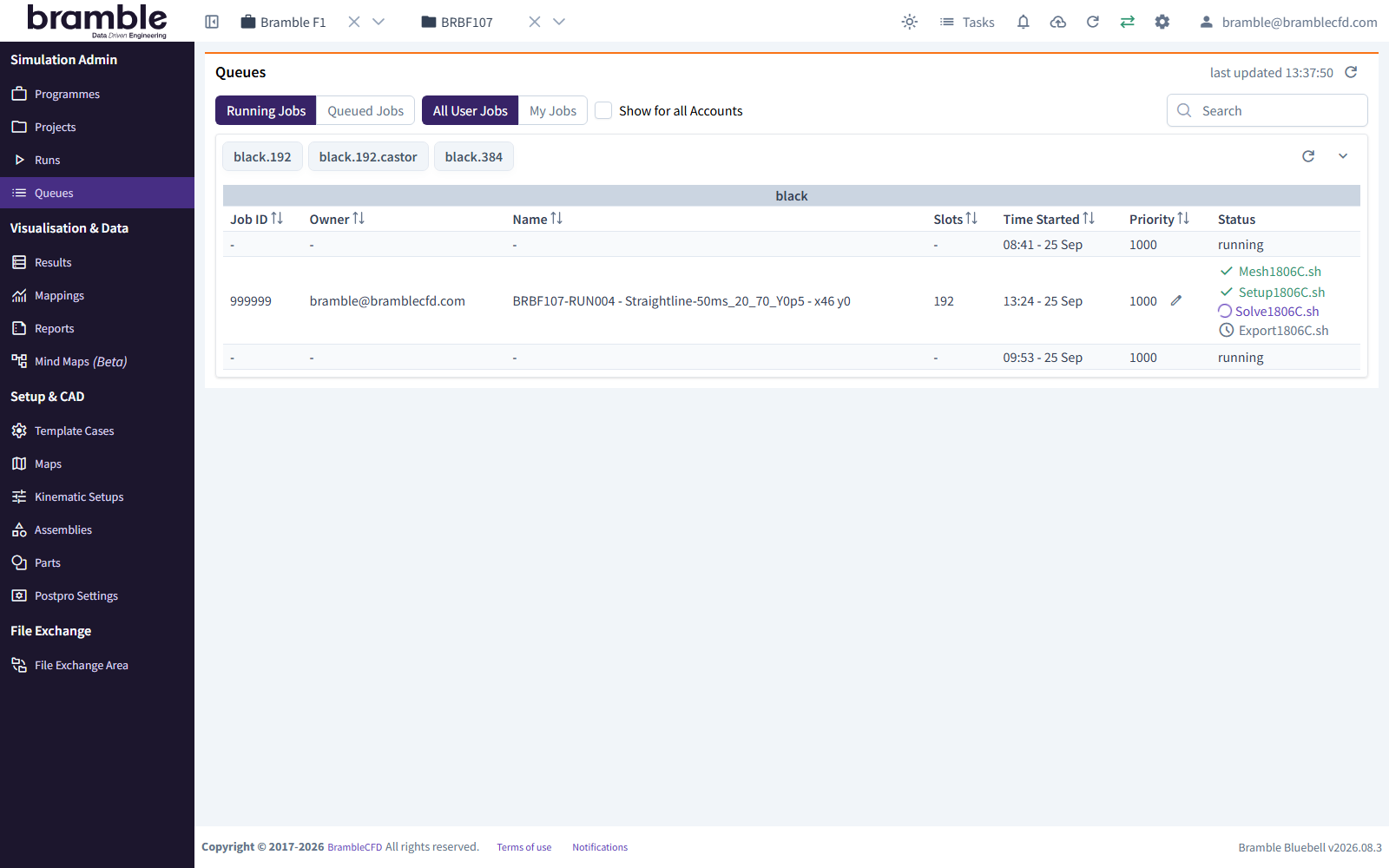
| Queues (sidebar) | Jobs running and queued on each HPC queue. Filter to My Jobs |
| Header bell → Latest Updates | Status updates for your Runs |
| Lifecycle emails, if turned on in your user settings |
4. Sign off
After post-processing, review the Attitude's convergence, forces and postpro, then sign it off on the Sign-off Case stage of the Summary tab. Signing off records that the results have been checked.
If something fails
- Failed stage: check the Logs tab. Once you've fixed the cause, Reset the Attitude and launch again. Alternatively, if the failure doesn't matter, use Skip Failed Task to carry on.
- Abort stops an Attitude that's queued or running.
- Re-run in the Post-Process row regenerates the postpro, for example after changing the PostPro Setup. See re-run post-processing.
For every stage, status and action, see statuses and lifecycle.